

| English | Korean | Chinese | Japanese |
Chapter 7. VMS Center
VMS Center is a centralized video monitoring program that can display all videos from multiple VMS servers on one large screen.
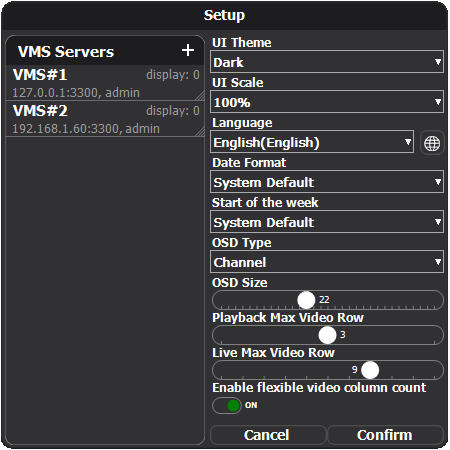
1. Configurations: Click the  button to register VMS servers in the configuration.
a. Register VMS servers: Click the "+" button to add a new VMS server. To edit an existing server configuration, click the server you want to edit.
b. UI Configurations: You can change UI configurations such as UI Theme, UI scale, OSD size, and language/locale information.
c. Live/Playback max video row: You can set the maximum number of videos in a row in live or playback mode.
d. Enable flexible video column count: If enabled, the number of videos in a row can increase on a wide monitor.
2. Connection: Click the  button to connect and display videos.

3. Channel List: You can choose how the channels are displayed.
· Click the channel display buttons to choose whether to order by channel number ( ) or by groups (
 ).
).
· Click the channel selection button ( ) to select any channels from any servers.
4. Layout: You can change the layout and video range by clicking the channel table and buttons.
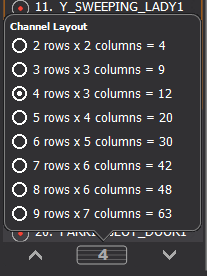
4. Keyboard control: You can also use the following keys to change the layout and video range:
· 'F' key: Toggle full screen mode
· ESC key: Exit full screen mode
· Left and Right arrow keys: Change the layout
· Up and Down arrow keys: Change the range of videos