

| English | Korean | Chinese | Japanese |
Chapter 11. Language Edit
In the `Misc.` menu of the configuration, you can access the Language Editor by clicking the globe button on the right side of the `Display Language` item.
1. In the Language Editor, ① select the target language and ② select the file you want to edit. In the Translation section on the right, ③ select each item and enter your translation in the target language. Then, ④ save the edited language settings.

2. After editing all the files, close the editor. You can then select the language you edited.
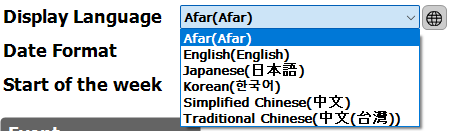
3. Additionally, you can export the edited language settings and import them into other programs such as vmsClient, vmsPlayer, and vmsCenter.