

| English | Korean | Chinese | Japanese |
Chapter 1. Installation
Install VMS Server
1. Double-click the installer (Setup-VMS-Server-x64.msi).
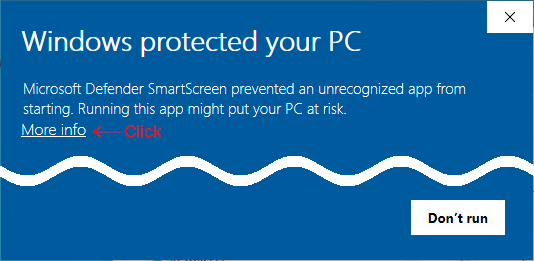
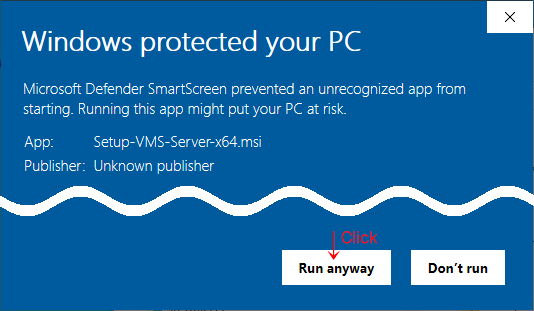
2. Because VMS is developed by an independent software vendor, Microsoft SmartScreen may display a warning. If the SmartScreen dialog appears:
a. Click `More info`.
b. Click `Run anyway`.
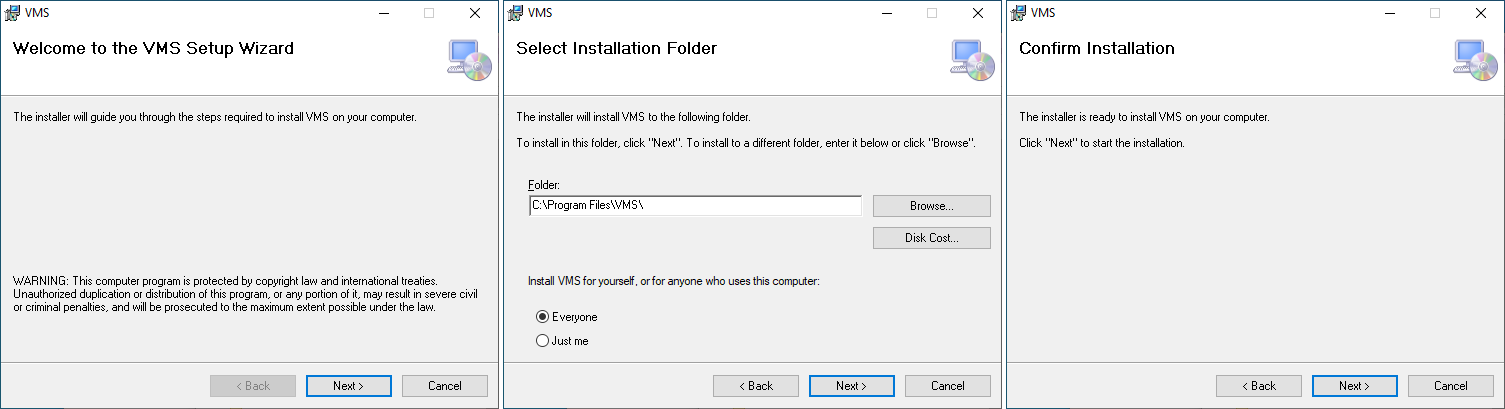
3. Click `Next` until the installation begins.
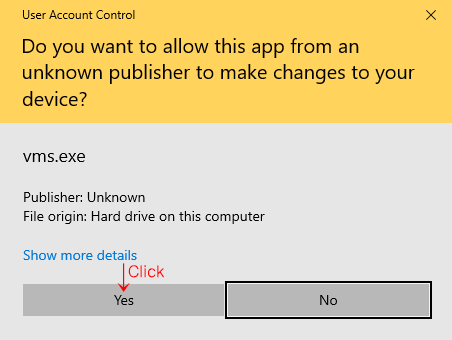
4. When the User Account Control dialog appears, click `Yes` to allow the installation to continue.
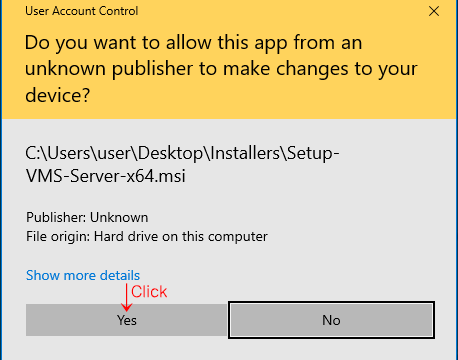
5. When you run `watchdog.exe`, `vms.exe`, or `config.exe`, the User Account Control dialog appears. Click `Yes` to allow the application to run.
· UAC elevation is required for certain functions, such as allowing VMS to reboot the system.
Install VMS Client / Player / Center
Install VMS Client, VMS Player, and VMS Center by following the same procedure described in Install VMS Server.
Uninstall
1. Go to Windows Settings > Apps.
2. Select “VMS” or “VMS Client” from the list, and then click Uninstall.