

| English | Korean | Chinese | Japanese |
Chapter 10. Video Edit
Zooming and panning of video
- You can zoom the video by scrolling the mouse wheel.
- Press the wheel button and move the mouse to pan the video.
Drawing shapes
· You can draw shapes such as rectangles, ellipses, polygons, arrows, or add external images to the video.

· Size: By dragging a rectangular control point, you can change the size of the shape.
While changing the size of the shape, you can maintain the aspect ratio by pressing the Shift key.
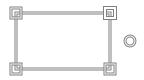
· Position: You can change the position by dragging inside the shape.
· Rotation: You can rotate the shape by dragging the round control point on the right side of the shape.
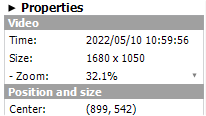
· Properties: In the properties window on the right, you can change properties such as line color or fill color.
· External image: External images such as JPG, GIF, or PNG can be inserted by drag-and-drop or by clicking the image button.
- Removing shapes
· While a shape is selected, you can click the trashcan button ( ) in the shape list, or press the "Del" key to remove the shape.
- Drawing polygons
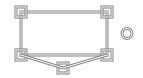
· Adding a vertex: Position the mouse pointer along an edge of a polygon, and click to add a new vertex.
· Removing a vertex: Position the mouse pointer over the vertex to remove, then click the mouse button.
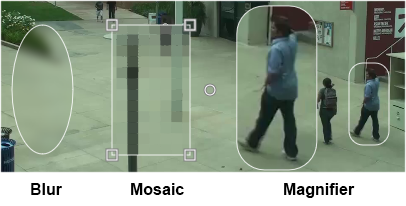
- Fill: Blur, Mosaic
· Among fill types, you can choose the blur or mosaic effect.
· You can adjust the intensity of the effect in the properties window.
Movable shape
· After adding a new shape, click the convert button ( ) at the bottom right to change it to a movable shape.
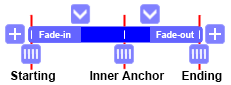
· A movable shape has starting and ending points. It can also have as many anchor points between them as you want.
· Point of time: At each starting, ending, and anchor point, you can change the position or size of the shape.
· Interpolation: Between points in time, the shape is drawn with interpolated values.
· You can add a new anchor point by clicking the "+" button at the bottom.
- Object Tracking
· For rectangle shapes, you can choose Object Tracking, which allows you to track the object in the video and make it movable.
· Algorithm: Choose an algorithm to perform tracking.
· Shrink factor: By setting a shrink factor, you can reduce the video size before running the algorithm.
· Fail threshold: Choose the maximum fail count.
- Manipulating time of shape
· On the time control, you can move through time by moving the mouse left and right while pressing the left mouse button.
· Press the right or left arrow key to move the video frame back and forth.
· If a movable shape exists at the current video time and you select it, you can find the buttons at the bottom right.
·  Jump to the starting point of the selected shape.
·  Jump to the previous anchor point of the selected shape.
·  Jump to the next anchor point of the selected shape.
·  Jump to the ending point of the selected shape.
·  Add a new anchor point.
·  Remove the existing anchor point.
- Animation Effect
· At the starting or ending point, you can change the time, add a new point, or apply a fade-in/out effect.
·  You can adjust the fade-in/out duration.
· You can set a new starting or ending point.
·  You can move the point in time back and forth.
- Merging movable shapes
· You can merge shapes of the same type, as long as they do not overlap.
· In the shape list, select shapes while pressing the Ctrl key. Click the "merge" button at the bottom.